• This web contains the official documentation of the TWiki-6.1 Release, code named KampalaRelease.
• It is a read-only web for reference. Please update documentation at TWiki.GlobalSearchAndReplaceHelp.
• It is a read-only web for reference. Please update documentation at TWiki.GlobalSearchAndReplaceHelp.
Global Search and Replace Help
Rows Explained
The three "Where" rows are used to find topics that contain text to be replaced. The three "What" rows are used to find and replace text within the topics found in the previous "Where" rows.| Row | Explanation | Default | |
|---|---|---|---|
| Where: | Web: | Selector to pick a web | Sandbox |
| Search Scope: | text (content) or topic (page name) | text | |
| Topic Search String: | Search string to identify topics. Use a regular expression search string. | (empty string) | |
| What: | Replace Search String: | Search string to identify text that should be replaced. Use regular expressions. Up to four sub-strings may be "captured" by enclosing them in parentheses | (content of Topic Search String) |
| Replace String: | Text that will replace the identified text. Captured sub-strings from the "Replace Search String" can be accessed with $1, $2, $3, and $4. Use $topic for the topic name; use \n for newline. |
||
| Case Sensitive Search: | Select yes or no | yes | |
Using Global Search And Replace
Example Global Search and Replace: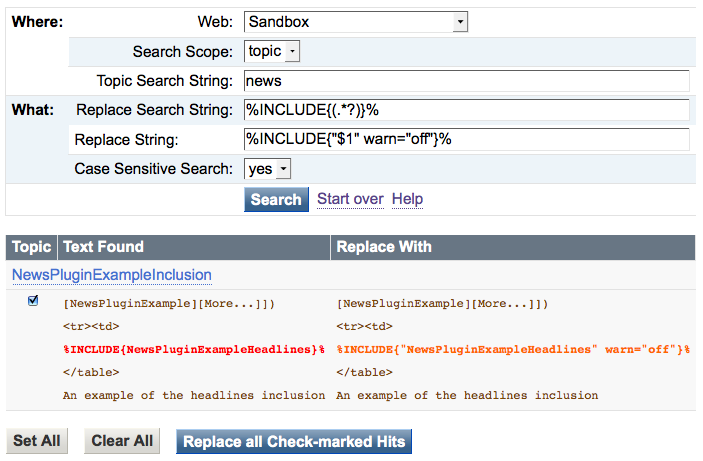 Note that there are two different search strings to define:
 - The search string to select a set of topics (the "Topic Search String")
- The search string to identify the expression to replace within a topic (the "Replace Search String")
Step 1: Select the Web and Topics
Select the web to search. Select a "Search Scope" oftext to search within a topic (the default), or select topic to search within the topic name only.
Specify the search criteria that will select the set of topics that contain the expression that is to be replaced. Using the top three rows first, you can try out different expressions. The "Topic Search String" supports regular expressions.
Click [Search].
TWiki will display a list of topics meeting the search criteria. If the list is correct, proceed to Step 2; otherwise, refine your search.
Note: You do not need to escape special characters, i.e. the double quote ("), or worry about TWiki variables rendering in "Replace Search String" and "Replace String". However, "Topic Search String" must be written as you would for the search parameter of a %SEARCH%. Thus, to search for %WEB% in "Topic Search String", you must specify %WEB[%] to escape the TWiki rendering. There is a known bug that if you escape a double quote with \" upon hitting the Search button the escape character, '\', will disappear but the search will have functioned properly.
Step 2: Find the Text to Replace and Specify the Replacement
The next step is to define a "Replace Search String": The string to search for and replace within each topic selected by Step 1. The "Replace Search String" also fully supports regular expressions. In regular expressions it is possible to capture up to four sub-strings using parentheses. Then use$1, $2, $3, and $4 in the "Replace String" to insert the captured sub-strings. See example above.
Set the "Replace String" to the new string which is to replace the found strings. The "Replace String" can be blank (which will delete the strings found in the selected topics). A known issue with the replace string is documented below.
Click [Search] again. TWiki will display a page of all "hits" on each topic selected in Step 1. Each hit has a checkbox and shows the "Replace Search String" highlighted in red and the "Replace String" in orange. Up to 40 characters will be display on each side of the hit for context.
Nothing will be saved until completing Steps 3 and 4 below.
Once satisfied, proceed to Step 3. Refine the search if needed.
Step 3: Select the Hits to be Replaced
Click the checkboxes for the hits you want to replace. The[Set All] and [Clear All] buttons below the hits are provided for convenience.
Step 4: Make the Replacements
Once the checkboxes are set as needed, click[Replace All Check Marked Hits] to commit your changes.
Only members of the TWikiAdminGroup will be allowed to commit changes.
Known Issues
- Currently, the
Replace Stringcannot handle more than one set of double quotes. For example,%META:FIELD{name="TopicClassification" title="TopicClassification" value="TWikiChangeRequest"}%will be truncated to%META:FIELD{name="TopicClassification"if you try to commit the changes.
 Edit | Attach |
 Topic revision: r1 - 2015-10-17 - TWikiContributor


 Site map
 Blog web
 User registration
 Users
Users Groups
 Index
Index Search
 Changes
 Notifications
 RSS Feed
 Statistics
 Preferences


 Copyright © 1999-2026 by the contributing authors. All material on this collaboration platform is the property of the contributing authors.
 Ideas, requests, problems regarding TWiki? Send feedback
Note: Please contribute updates to this topic on TWiki.org at TWiki:TWiki.GlobalSearchAndReplaceHelp.