WorkflowPlugin
Associate a "state" with a topic and then control the work flow that the topic progresses through as content is added.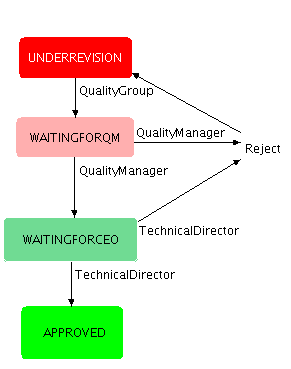
Introduction
TWiki benefits from the fact that every user can modify a topic instantly without restrictions. However sometimes you want to be able to associate a "state" with a topic and then control the work flow that the topic progresses through as content is added. For example,- When writing documents compliant with ISO 9000 (e.g. a quality manual), it is essential that documents are approved by the management before they may be applied by the employees.
- In a defect tracking data base, defects typically transition through a series of states from submission to resolution, with different actions available depending on the state of the defect.
- In a journal database, papers must be reviewed and approved by several experts in the field before being allowed to be published.
Upgrade note If you are upgrading from a version before 10 Nov 2008 please note that the format of the WORKFLOWHISTORYFORMAT preference has changed slightly, in that:
- enclosing double quotes are no longer removed from the value. This changes has been to bring this preference definition into line with other preference definitions.
$nis interpreted as \n, not <br>, in line with the standard format tokens. If you want a <br> in the format string, then enter it as <br> or $percntBR$percnt.
Usage
A topic is under document control if the preference variableWORKFLOW is set
in the topic page. WORKFLOW must be set to the TWiki name of a topic that describes your specific workflow (the workflow description topic).
Note: you can hide the setting in a normal view using HTML comments, or better, you can put these settings into the local topic settings, accessible from the "more" screen.
Settings in the workflow description topic
The workflow description topic must contain one state table and one transition table. The state table describes the possible states a document may be in (nodes in the flow diagram above), and the transition table describes how documents move between states (arcs in the flow diagram). This is easiest illustrated using an example (available as DocumentApprovalWorkflow if the plugin is installed). The state table is a TWiki table with three columns:| *State* | *Allow Edit* | *Message* | | UNDERREVISION | QualityGroup | This document is being revised. | | APPROVED | nobody | This document has been approved for release. | | WAITINGFORQM | nobody | This document is waiting for approval by the Quality Manager. | | WAITINGFORCTO | nobody | This document is waiting for approval by the CTO.|Each row in the table defines a state where:
- the State column specifies a name for the state,
- the Allow Edit column specifies who is permitted to edit the topic when it is in the state, and
- the Message column defines a message which can be displayed on the document page when the document is in this state.
 i Note: The state table must be defined before the transition table!
The transition table consists of four columns, as in this example:
i Note: The state table must be defined before the transition table!
The transition table consists of four columns, as in this example:
| *State*       | *Action* | *Next State*  | *Allowed*                        |
| APPROVED      | revise   | UNDERREVISION | QualityGroup                     |
| UNDERREVISION | complete | WAITINGFORQM  | QualityGroup                     |
| WAITINGFORQM  | approve  | WAITINGFORCTO | QualityManager                   |
| WAITINGFORQM  | reject   | UNDERREVISION | QualityManager,QualityGroup      |
| WAITINGFORCTO | approve  | APPROVED      | TechnicalDirector                |
| WAITINGFORCTO | reject   | UNDERREVISION | TechnicalDirector,QualityManager |
Each row in this table defines a transition from one state to another state:
- the State column contains the name of a state from the state table,
- the Action column describes a possible action when the topic is in this state,
- the Next State column defines the new state of the document after the specified action has been performed,
- the Allowed column specifies who is allowed to perform the corresponding action,
- an optional Form column defines a form that is attached to the topic in this state.
- an optional Notify column specifies who should be notified when this transition fires
UNDERREVISION state. After finishing the revision, the document can be transitioned to the WAITINGFORQM state by any member of the QualityGroup. It must then be approved by the QualityManager, and after that by the TechnicalDirector. Even though they can't edit the document themselves (see state table above), they can reject the revision and put the document back into the UNDERREVISION state. The TechnicalDirector can transition the document to APPROVED state where it rests until a member of the QualityGroup puts it under revision again.
If a form name is given in the Form column, this form will be attached to the topic, and the topic will put in edit mode to allow information to be provided in the form when that state transition happens. In the example above, a form of type ApprovedForm will be attached to the topic when the CTO transitions the topic into APPROVED state.
- if there is already a form of a different type attached to the topic, then any fields that have the same name in the new form will be preserved.
- If no form is given, the existing form (if any) is left in place.
label field) once a given state is reached.
If a Notify column is given, that column can contain a comma-separated list of people who are to be notified when the transition is fired. You can specify individual user wiki names, group names, and even individual email addresses.
Settings in your controlled document/topic
As described above the topic needs to contain a definition for the variableWORKFLOW for it to be controlled under the approval workflow. This is best set as a document-specific preference setting in the More topic actions screen.
WORKFLOW* Variables
| Controlling topics in the workflow | |
|---|---|
%WORKATTACHTOPIC% |
Expands to a link that lets you attach to the topic (if the user is not able to modify the topic, either in the workflow sense or according to the standard access controls, the link will be |
%WORKEDITTOPIC% |
Expands to a link that lets you edit the topic (if the user is not able to modify the topic, either in the workflow sense or according to the standard access controls, the link will be |
%WORKFLOWFORK{...}% |
Expands to a button that will create a copy of the current topic (see below for more details) |
%WORKFLOWTRANSITION% |
Expands to either (a) a pull-down menu if the user can perform more than one transition, (b) a button if the current user can only perform one transition, or (c) empty space if the current user is not allowed to perform any action. You can change the format of the button using a CSS class (see WORKFLOWTRANSITIONCSSCLASS below) |
| Querying the workflow | |
%WORKFLOWHISTORY% |
Expands to the history of state transitions the topic has undergone. The format of the history is dictated by the WORKFLOWHISTORYFORMAT (described below). |
%WORKFLOWLASTREV_State% |
Expands to the version number when the document was last in the state State. |
%WORKFLOWLASTTIME_State% |
Expands to the timestamp when the document was last in the State last state. For example, %WORKFLOWLASTTIME_APPROVED% would be replaced by the timestamp when the document was last in the APPROVED state. |
%WORKFLOWLASTVERSION_State% |
Expands to a link to the version of the document when it was last in the state State. |
%WORKFLOWSTATE% |
Expands to the current state of the document. It can also be given a topic parameter (default), in which case the state of that topic is returned. |
%WORKFLOWSTATEMESSAGE% |
Expands to the corresponding message in the state table. |
web parameter. If these are omitted, they will default to the current topic.)
Furthermore, the plugin replaces any variable starting with WORKFLOW that is defined in the workflow description file.
If the topic is not controlled, then any references to WORKFLOW variables are simply removed (you can use this behaviour to place these tags in the header or footer in your skin templates. They appear only if the currently displayed document is controlled. Otherwise, they are just removed and do not disturb the layout).
In addition there are two variables you can define in your topics (or WebPreferences)
WORKFLOWHISTORYFORMAT tells the plugin how to format each new line added to the WORKFLOWHISTORY. The format is used as a template for each new entry, and should include all the formatting necessary to make the history look nice when it is viewed.
In this example the history is formatted as a table: - Set WORKFLOWHISTORYFORMAT = $n| $state | $wikiusername | $date |
- Set WORKFLOWHISTORYFORMAT = $n * $state -- $wikiusername, $date
| Token | Expands to |
|---|---|
$wikiusername |
Who triggered the transition |
$state |
The target state of the transition |
$date |
Date of the transition |
$rev |
Version at the transition |
- Set WORKFLOWTRANSITIONCSSCLASS = myCSSClass
twikiChangeFormButton twikiSubmit.
The WORKFLOWFORK variable is used to generate a button that will create a copy of
a workflow topic. It accepts the following parameters:
| Parameter | Meaning | Default |
|---|---|---|
"TopicName" |
(Optional) name of the topic to fork | current topic |
web |
(Optional) name of the web containing the topic to fork | current web |
newnames="NameOne,NameTwo" |
Comma-separated list of name(s) of the new topic(s) to create, You can use a web specifier on the topic names. | required, no default. |
label="Fork" |
Label to use in the button | "Fork" |
lockdown="on" |
Set this if you want the forked topic to be set as uneditable after the fork | off |
%WORKFLOWFORK{"OriginalTopic" label="Divide and conquer" newnames="ForkPathOne,ForkPathTwo" lockdown="on"}% will create two copies of OriginalTopic, named ForkPathOne and ForkPathTwo and set the OriginalTopic as uneditable (using ALLOWTOPICCHANGE).
The histories in both the fork copies and the original topic record what happened.
The user has to be able to modify the topic (both in the workflow sense and according to the standard access controls) in order to fork.
due to a bug in versions of the plugin prior to Oct 2009, the default "TopicName" parameter was interpreted as the name of the new topic to fork to. This has been corrected, but the variable will revert to the old meaning if you omit the newnames parameter.
If you replace %EDITTOPIC% with %WORKFLOWEDITTOPIC% in your skin templates, then the Edit link is crossed out when the user is not allowed to edit the page in a state.
Similarly, you can use %WORKFLOWATTACHTOPIC% in your skin templates to cross out the Attach link.
Content-sensitive workflows
Advanced Flows can be made sensitive to the content of the controlled topics. The 'Allow Edit' column in the state table, and the 'Next State' and 'Allowed' columns in the transition table, support the use of variables which are expanded when the topic is viewed. For example, you can use theMETA variable to pick up values for these fields from the form attached to the viewed topic:
State table
| *State*             | *Allow Edit*                         | *Message* |
| WAITINGFORAPPROVAL  | %META{"formfield" name="MayModify"}% | This document is waiting for approval |
Transition Table
| *State*            | *Action* | *Next State*                             | *Allowed*                        |
| WAITINGFORAPPROVAL | approve  | %META{"formfield" name="ApprovedState"}% | %META{"formfield" name="MayApprove"}% |
You can also define other variables starting with WORKFLOW in the workflow
description topic. These will be expanded to their defined values in any
topic that uses the workflow. For example:
- Set WORKFLOWNOTICE = This topic is under document control.
WORKFLOWNOTICE in any topic that uses the workflow.
Reporting
A common requirement is to report on the status of topics that are in different states in the workflow. You can use the query search to search for topics in a specific state. For example, to search for all topics in state "APPROVED":
%SEARCH{"META:WORKFLOW.name='APPROVED'" type="query"}%
History and Acknowledgements
This plugin was motivated by Thomas Weigert 's WorkFlowAddOn and its first version (then called ApprovalPlugin) was written by Thomas Hartkens, albeit it was focused on document approval and control. Thomas Weigert then merged the functionality of the WorkFlowAddOn into this plugin.
Installation Instructions
Note: You do not need to install anything on the browser to use this extension. The following instructions are for the administrator who installs the extension on the TWiki server.- For an automated installation, run the configure script and follow "Find More Extensions" in the in the Extensions section.
- See the installation supplement on TWiki.org for more information.
- See the installation supplement
- Or, follow these manual installation steps:
- Download the ZIP file from the extension home on twiki.org (see below).
- Unzip
WorkflowPlugin.zipin your twiki installation directory. - Set the ownership of the extracted directories and files to the webserver user.
- Install the dependencies (if any).
- Plugin configuration and testing:
- Run the configure script and enable the plugin in the Plugins section.
- Configure additional plugin settings in the Extensions section if needed.
- Test if the installation was successful using the examples provided.
convert.pl.txt will convert topics written for the ApprovalPlugin to the WorkflowPlugin. The script takes a topic at the standard input and outputs the converted topic on standard output. Rename the file from convert.pl.txt to convert.pl.
Look at the examples in the Sandbox web.
Note: For strict access control, the plugin should know who is looking at the controlled document/topic at all times. To enable this, you may want to set up TWiki in such way that users have to log-in even if they just display a topic.
Plugin Info
| Authors: | TWiki:Main.ThomasHartkens, TWiki:Main.ThomasWeigert, TWiki:Main.CrawfordCurrie |
| Copyright: | © 2005 TWiki:Main.ThomasHartkens © 2005 TWiki:Main.ThomasWeigert © 2008-2010 TWiki:Main.CrawfordCurrie © 2005-2012 TWiki:TWiki.TWikiContributor |
| License: | GPL (Gnu General Public License) |
| Plugin Version: | 2012-12-02 |
| Change History: | |
| 2012-12-02: | TWikibug:Item7020: Add category to VarWORKFLOW -- TWiki:Main.PeterThoeny |
| 2011-09-12: | TWikibug:Item6800: Fix for using qw(...) as parentheses, which is deprecated in Perl 5.14 -- TWiki:Main.PaulMerchantJr |
| 2010-09-04: | TWikibug:Item6577: Major import of plugin improvements; doc enhancements |
| 25 Aug 2010 | F8908: fix obscure error that caused apparently inexplicable crashes; hint: never use $_ as in iterator control variable in your perl code. |
| 15 Jun 2010 | F9142: make the access controls checks more thorough |
| 1 Jun 2010 | F9086: ensure t= is set on all edit links; also validate the workflow name. |
| 31 May 2010: | Crawford Currie: F9072: add WORKFLOWLASTREV_State to show topic revision number F9081: force new topic revision on each state transition to avoid history loss |
| 26 May 2010: | Crawford Currie: F2425: allow cancellation of state transitions that involve an edit step. F8321: allow non-wikiword topic names F8320: added $rev to WORKFLOWHISTORYFORMAT F8297: a topic parameter to the view url could bork the transition button F9048: use the Allow Edit control to check and limit general saves, such as those done from CommentPlugin |
| 03 Feb 2010: | F8462: Andrew Jones made some minor doc fixes |
| 19 Oct 2009: | F2092: Link fork topics mentioned in history F8268: added topic control to WORKFLOWTRANSITION F8306: support fork to multiple topics, changed WORKFLOWFORK parameters for compatibility with other variables |
| 2 Sep 2009: | F1828: Dean Spicer added support for variable expansion of the next state. F1828: Crawford Currie documented his work, and added support for topic forking. F1828: fixed the defect example. |
| 3 Jun 2009: | F8172: Dean Spicer added support for cross-topic state and history queries |
| 29 Apr 2009: | F8147: fix version recording |
| 23 Apr 2009: | F1503: fix collection of notify addresses |
| 9 Apr 2009: | F8107: block transition if topic is being edited by another user |
| 21 Mar 2009: | Dean Spicer/Crawford Currie: F8080: finish porting to TWiki and support %WORKFLOWATTACHTOPIC |
| 20 Mar 2009 | Crawford Currie: F8069: deny attach on a controlled topic F8070: expand variables in Allow and AllowEdit fields |
| 11 Dec 2008 | Crawford Currie: F8029: support notification of a list of people on state changes |
| 15 Nov 2008 | Crawford Currie: F6114: Fixed format of history F6119: added InProcessForm and increased defensiveness in a couple of places |
| 10 Nov 2008 | Crawford Currie: Heavily refactored to OO style to ease maintenance. Ensure form is saved when state changes. Support use of '. Split off VarWORKFLOW documentation. Removed 'back door' call that was causing issues, Work supported by http://micralyne.com |
| 23 Apr 2008 | Crawford Currie: Removed last of the core calls, fixed user management. Work supported by http://www.productbox.co.uk/ |
| 28 Jan 2008: | Kenneth Lavrsen: Fixed his typo in code. Renamed the convert.pl to convert.pl.txt as most installs do not allow .pl as extension and this creates problems when you want to update attachments |
| 27 Jan 2008: | Markus Ueberall: Fixed for compatibility with TWiki 4.2.0 |
| 10 Dec 2006: | Add %WORKFLOWSTATE%. |
| 25 Sep 2006: | Restored ability to put workflow related tags into templates. Support the visual customization of the generated controls. |
| 11463 | Crawford Currie rewrote the doc and corrected the install procedure |
| 10 Aug 2006: | Added conversion script. |
| 05 Aug 2006: | Crawford Currie: Converted from ApprovalPlugin to WorkflowPlugin. |
| 26 Jul 2006: | Minor bug fix. Additional examples provided. |
| 25 Jul 2006: | Added state-based forms and history from TWiki:Plugins/WorkFlowAddOn. Changed time stamp format to be more wiki like. |
| 24 Jul 2006: | Ported to Dakar. Fixed problem in referencing previous versions. Fixed error messages. Fixed Documentation errors. |
| 05 Aug 2006: | Crawford Currie: Converted from ApprovalPlugin to WorkflowPlugin. |
| 16 Feb 2005: | Thomas Hartkens: Initial version of ApprovalPlugin |
| 05 Feb 2004: | Thomas Weigert Initial version of WorkFlowAddOn |
| TWiki Dependency: | $TWiki::Plugins::VERSION 1.1 |
| Dependencies: | None |
| TWiki:Plugins/Benchmark: |
GoodStyle nn%, FormattedSearch nn%, WorkflowPlugin nn% |
| Plugin Home: | http://TWiki.org/cgi-bin/view/Plugins/WorkflowPlugin |
| Feedback: | http://TWiki.org/cgi-bin/view/Plugins/WorkflowPluginDev |
| Appraisal: | http://TWiki.org/cgi-bin/view/Plugins/WorkflowPluginAppraisal |


| I | Attachment | History | Action | Size | Date | Who | Comment |
|---|---|---|---|---|---|---|---|
 md5 md5 |
WorkflowPlugin.md5 | r18 r17 r16 r15 r14 | manage | 0.2 K | 2012-12-02 - 08:43 | PeterThoeny | |
 tgz tgz |
WorkflowPlugin.tgz | r19 r18 r17 r16 r15 | manage | 27.1 K | 2012-12-02 - 08:43 | PeterThoeny | |
| zip |
WorkflowPlugin.zip | r23 r22 r21 r20 r19 | manage | 37.7 K | 2012-12-02 - 08:43 | PeterThoeny | |
| ext |
WorkflowPlugin_installer | r9 r8 r7 r6 r5 | manage | 4.7 K | 2012-12-02 - 08:43 | PeterThoeny |

Topic revision: r40 - 2018-07-17 - PeterThoeny


 Site map
 Blog web

 Index
Index Search
 Search extensions
 Search by tags
 Changes
 Notifications
 RSS Feed
 Statistics
 Preferences
 Community
  Readme first!
 Rate extensions!
 Add-Ons
  Development topics
 Idea topics
 Plugins
  Development topics
 Idea topics
 Skins
Skins  Development topics
 Idea topics
 Code Contribs
  Development topics
 Idea topics


 Account


 Ideas, requests, problems regarding TWiki? Send feedback. Ask community in the support forum.
Copyright © 1999-2026 by the contributing authors. All material on this collaboration platform is the property of the contributing authors.